

Organizing photos on an iPhone can feel like herding cats—chaotic and a little overwhelming. With endless snapshots of your cat in various poses and that one blurry picture from last summer’s barbecue, it’s time to bring some order to the digital madness. Creating albums not only saves your sanity but also makes finding those precious memories a breeze.
Understanding Photos and Albums on iPhone
Managing photos on an iPhone can feel overwhelming. Utilizing albums simplifies this process, making it easier to find and enjoy those special moments.
What Are Albums?
Albums serve as organized collections of photos. Each album can contain multiple images, allowing users to categorize their memories effectively. Users can create specific folders based on events, themes, or people. Customization options exist, so it’s possible to rearrange photos within albums. Albums enhance the user’s ability to navigate through large photo libraries. This organization supports quick access to favorite images.
Why Organize Photos in Albums?
Organizing photos into albums has several benefits. First, albums provide a structured environment for easy retrieval. It becomes straightforward to locate images from a vacation or special occasion. Second, albums reduce clutter in the main photo gallery. This clarity leads to a more enjoyable browsing experience. Third, emotional connections to memories strengthen through thoughtful album curation. By grouping similar photos together, users can relive experiences more effectively.
Step-by-Step Guide on How to Put Photos in Albums on iPhone
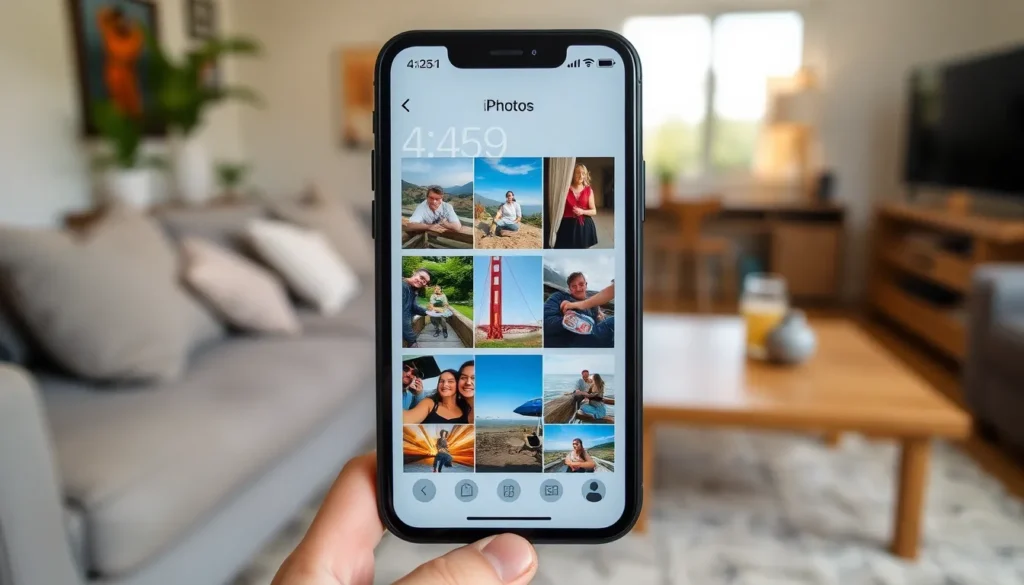
Organizing photos into albums on an iPhone simplifies access to cherished memories. Follow these steps for effective photo management.
Creating a New Album
To create a new album, open the Photos app. Tap the “Albums” tab located at the bottom of the screen. Select the “+” icon in the upper left corner. Enter a name for your album, then tap “Save.” You can now add photos to the album immediately after creating it or do so later by accessing the album.
Adding Photos to an Existing Album
Access the album you want to enhance by tapping the “Albums” tab. Locate the album from the list and open it. Tap “Add” or the “+” icon, then select the photos. After making selections, tap “Done” or “Add” to complete the process. The photos will now appear in the targeted album.
Rearranging Photos Within an Album
To rearrange photos, open the album where adjustments are needed. Press and hold on a photo until it becomes movable. Drag the photo to the desired position within the album. Repeat this process for other photos as necessary. Changes save automatically, ensuring the album reflects the new arrangement.
Tips for Managing Albums on iPhone
Managing albums on an iPhone simplifies photo organization and improves retrieval. Here are some helpful strategies to enhance album management.
Deleting Unwanted Albums
Deleting unwanted albums clears clutter from the photo library. First, open the Photos app and tap on the Albums tab. Locate the album that requires removal and tap the Edit button in the top right corner. Select the red minus sign next to the album’s name, followed by the Delete option to confirm the action. Albums that no longer serve a purpose can diminish the photo gallery’s organization. Regularly assessing and removing these albums maintains a tidy interface.
Sharing Albums with Friends and Family
Sharing albums allows collaboration and enhances memory sharing. Users can create shared albums in the Photos app by selecting an existing album or creating a new one. Tap the Share button and choose the option to invite others via email or message. Friends and family can view, comment, and add their photos to the shared album. This feature cultivates connections and creates collective memories while providing flexibility in sharing special moments.
Organizing photos into albums on an iPhone transforms a chaotic gallery into a well-structured collection. By implementing the strategies outlined, users can easily categorize their memories and enhance their photo management experience. Thoughtfully curated albums not only reduce clutter but also deepen emotional connections to cherished moments.
Whether it’s for personal enjoyment or sharing with loved ones, the ability to create and manage albums makes navigating through a large photo library a breeze. Embracing this organization method will lead to a more enjoyable and efficient way to relive those special memories.

