

In a world where distractions lurk around every corner, blocking websites on an iPhone can feel like building a digital fortress. Whether it’s endless scrolling on social media or those pesky clickbait articles, he knows that sometimes a little self-control needs a helping hand. Luckily, iPhones come equipped with tools that let users take charge of their browsing experience, turning temptation into triumph.
Imagine being able to focus on what really matters—like finally finishing that book or mastering a new recipe—without the siren call of distracting websites. With just a few taps, it’s possible to reclaim precious time and boost productivity. So, if he’s ready to kick those distractions to the curb, let’s dive into the simple steps that can transform his iPhone into a distraction-free zone.
Methods to Block Websites
Blocking websites on an iPhone can help users maintain focus and reduce distractions. Two effective methods include using Screen Time settings and third-party apps.
Using Screen Time Settings
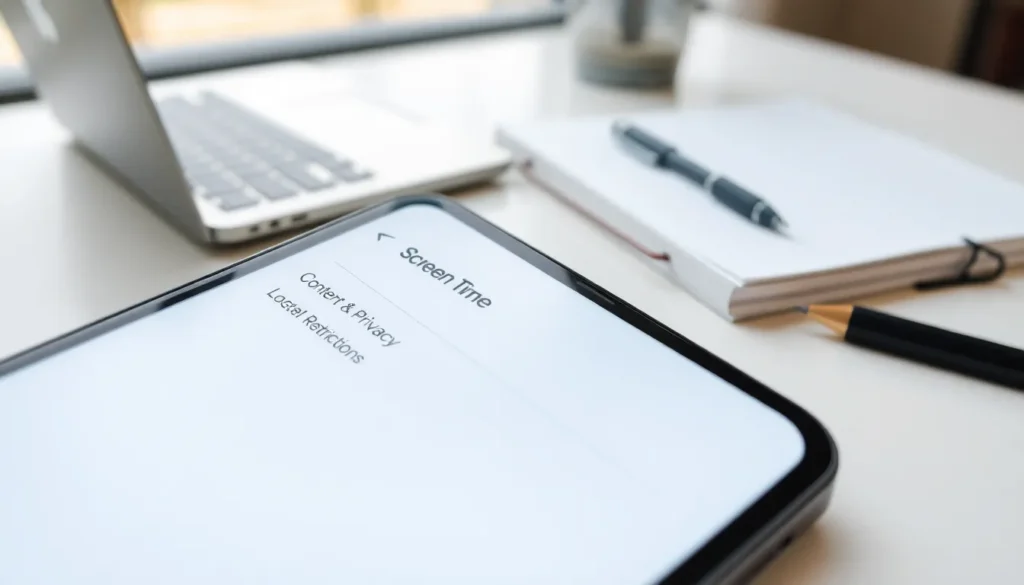
Screen Time offers a built-in tool for blocking websites. Users access this feature by navigating to Settings, then selecting Screen Time. After activating Screen Time, they tap on “Content & Privacy Restrictions.” Users can enable restrictions and select “Content Restrictions” to find the option for blocking websites. Specific URLs can be added under the “Never Allow” section, allowing users to customize their experience. Daily usage reports can also inform users about their browsing habits, promoting better decision-making regarding website access.
Using Third-Party Apps
Several third-party apps provide additional website-blocking features. Popular options include Freedom, StayFocusd, and AppBlock. Users can install these apps from the App Store and follow the setup process for configuring website restrictions. Each app offers unique features, ranging from customizable block lists to scheduling capabilities. Some apps even include productivity tracking and usage analytics, which help users understand their browsing patterns. Selecting a suitable app depends on personal preferences and desired functionality.
Step-by-Step Guide
Blocking websites on an iPhone can significantly enhance focus and productivity. This guide outlines two effective methods to achieve this goal.
Blocking Websites with Screen Time
Start by opening the Settings app on the iPhone. Navigate to “Screen Time” and tap on it. Enable Screen Time if it isn’t active. Next, select “Content & Privacy Restrictions.” Turn on the toggle for Content & Privacy Restrictions when prompted. After enabling this feature, go to “Content Restrictions,” then select “Web Content.” Choose “Limit Adult Websites” to set some basic restrictions. To block specific sites, tap “Add Website” under the “Never Allow” section. Input the desired URL and confirm. By following these steps, unwanted distractions become effectively managed.
Using an App to Block Websites
Explore various third-party apps for blocking websites on an iPhone. Download popular options like Freedom, StayFocusd, or AppBlock from the App Store. Each app offers unique features, such as customizable block lists, allowing users to tailor their experience. After installation, open the app and create an account if necessary. Set up preferred websites to block, and choose the time length for the block. Many of these apps provide productivity tracking to monitor online habits. Following this method helps maintain focus while browsing.
Tips for Effective Website Blocking
Effective website blocking enhances focus while browsing. It’s crucial to prioritize methods ensuring a productive online experience.
Whitelisting Safe Websites
Whitelisting involves permitting access to specific websites deemed essential. Start by identifying the sites needed for work or education, such as educational platforms or professional resources. Once identified, navigate to Settings > Screen Time > Content & Privacy Restrictions. From there, select Allowed Apps and add preferred websites. This process minimizes distractions by restricting access to unnecessary sites while allowing for essential browsing. Users benefit from enhanced focus and fewer interruptions.
Regularly Updating Blocked Lists
Maintaining an updated blocked list is vital for effective website management. Frequent reviews ensure current distractions remain blocked. Users should assess their browsing habits to identify new disruptive websites. By navigating to Settings > Screen Time > Content & Privacy Restrictions, individuals can easily modify their list. Additionally, consider adjusting block durations based on productivity needs. Regular updates help keep distractions at bay and support ongoing productivity.
Blocking distracting websites on an iPhone is a powerful way to enhance focus and productivity. By utilizing built-in features like Screen Time or third-party apps, users can tailor their browsing experience to minimize interruptions.
Implementing these strategies not only helps in reclaiming valuable time but also promotes healthier digital habits. Regularly updating blocked lists and whitelisting essential sites ensures that users remain in control of their online activities.
With these tools at their disposal, anyone can transform their iPhone into a distraction-free environment, paving the way for more meaningful engagement in daily tasks.

